Video
Review video with sailing data
With Pro or Coach, upload footage, align it with your sailing data and bring it into a debrief on another device. Video features, including local video, require a paid plan.
iOS, Android and web · Pro or Coach
Where to start
Activity → Video Analysis → Open, or Open Replay → Videos.
Attach the footage
Use the activity’s video controls to add a supported file. Check that it appears in Attached videos.
Check the timing
Play a recognizable turn and compare it with the track. If it does not line up, open Correct Video Timestamp and adjust the time correction using the alignment preview.
Apply the correction
Choose Apply correction, then This video only, All session videos or Select… and confirm. Check another event later in the clip.
Review together
Play or scrub the session; aligned video follows the replay time. Change the emphasis between map and video as needed.
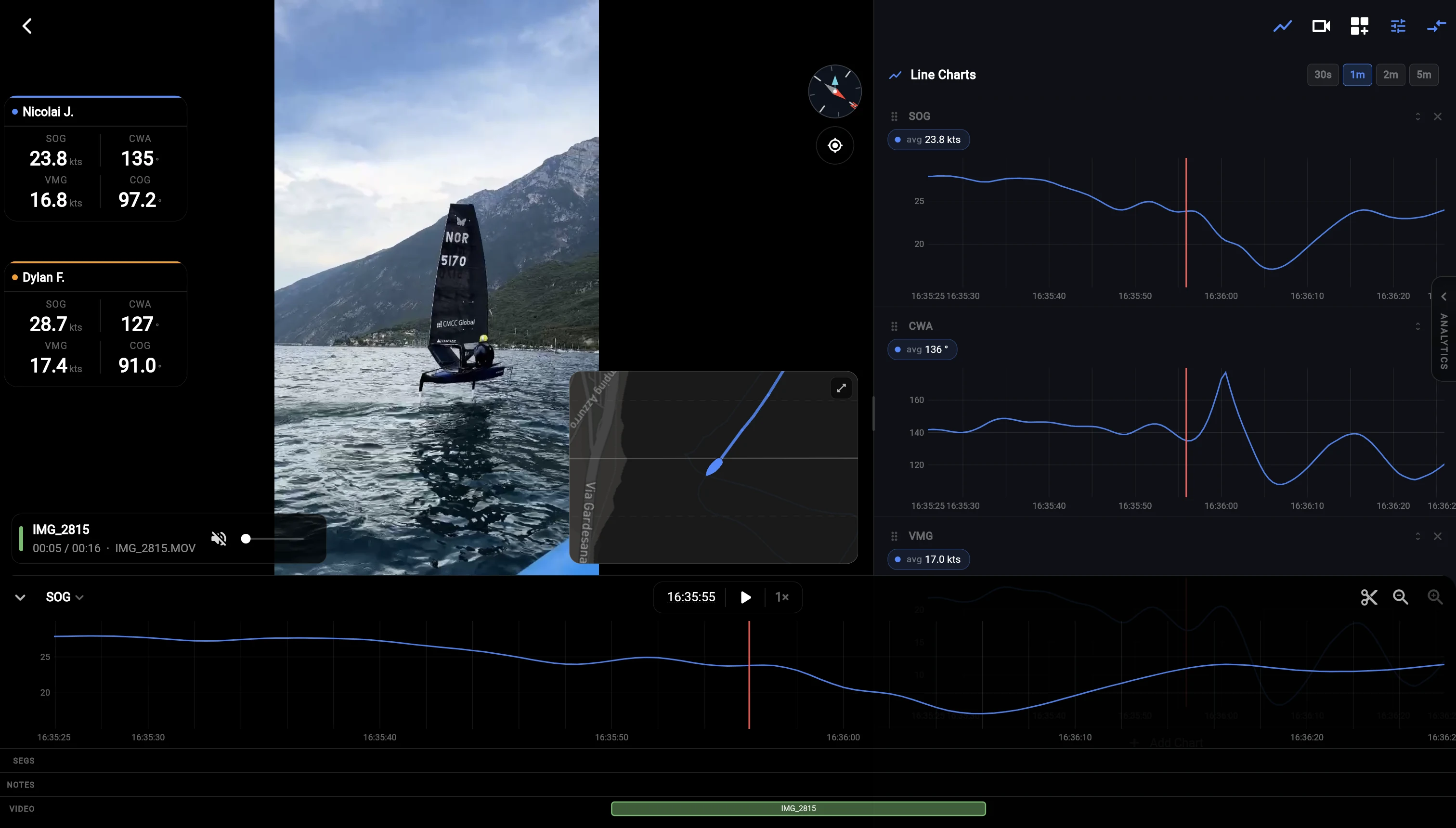
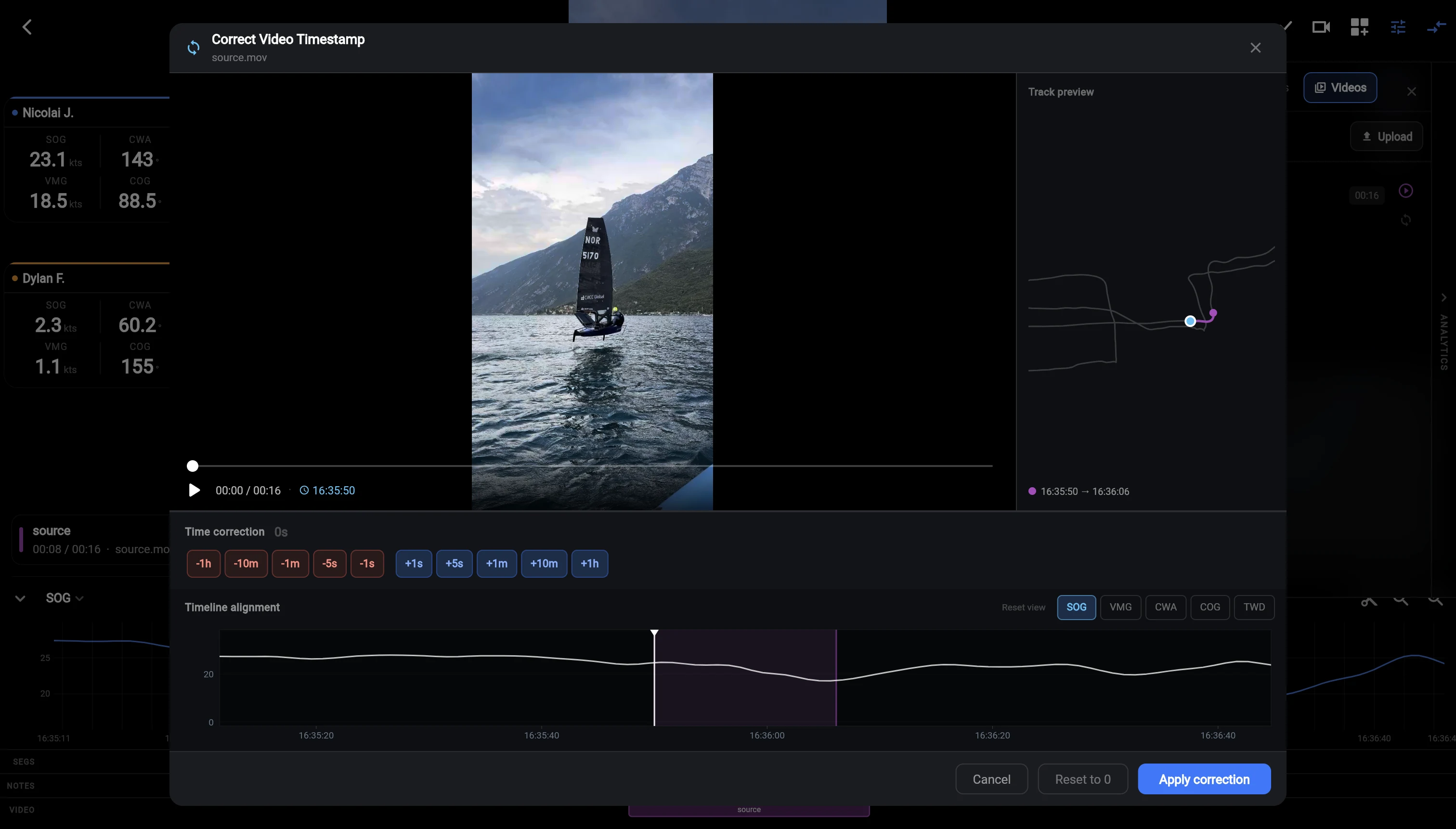
Upload on mobile, debrief on the web
- Upload the activity and a cloud copy of the footage you want to review. Wait for both uploads to finish.
- Sign in to the same Vantage account on the web and find the session.
- Open replay and check that the cloud video plays before starting the debrief.
Signing in on another device does not transfer a local video file. Footage must have a completed cloud upload to be available there.
Manage cloud storage
Pro and Coach each include 100 GB of cloud video storage. At an average bitrate of 10 Mbps, that is roughly 22 hours of footage. Actual capacity in hours depends on the recording settings and compression.
Open Profile → Video storage to see which clips are In the cloud or Local only, together with your storage allowance.
- Upload cloud copy
Upload a local clip so it can be opened on another device. Wait for the upload to finish before leaving the original device.
- Remove cloud copy
Free cloud space while retaining the video record. An original file you keep on your device is separate from the cloud copy.
- Delete video record
Remove the record and its links to activities, including other sessions using that clip. Read the confirmation and keep your original if you still need the footage.
If footage is missing or will not play
Check the clip’s time overlap and whether a local or cloud copy is available. Hidden means the current device has neither. If prompted, reselect the unchanged original with the matching name and size.
Codec support varies by device/browser. Browser files above 20 GB remain local, and refreshing may require selecting the file again.