Replay and analysis
Review a session in replay
Follow the track and measurements, then save the moments worth discussing.
iOS, Android and web · Core replay; segments and line charts require Pro or Coach
Where to start
Activity → Replay → Open Replay.
Find the moment
Play, pause or scrub the timeline. Change playback speed to scan a run or inspect a maneuver.
Choose the view
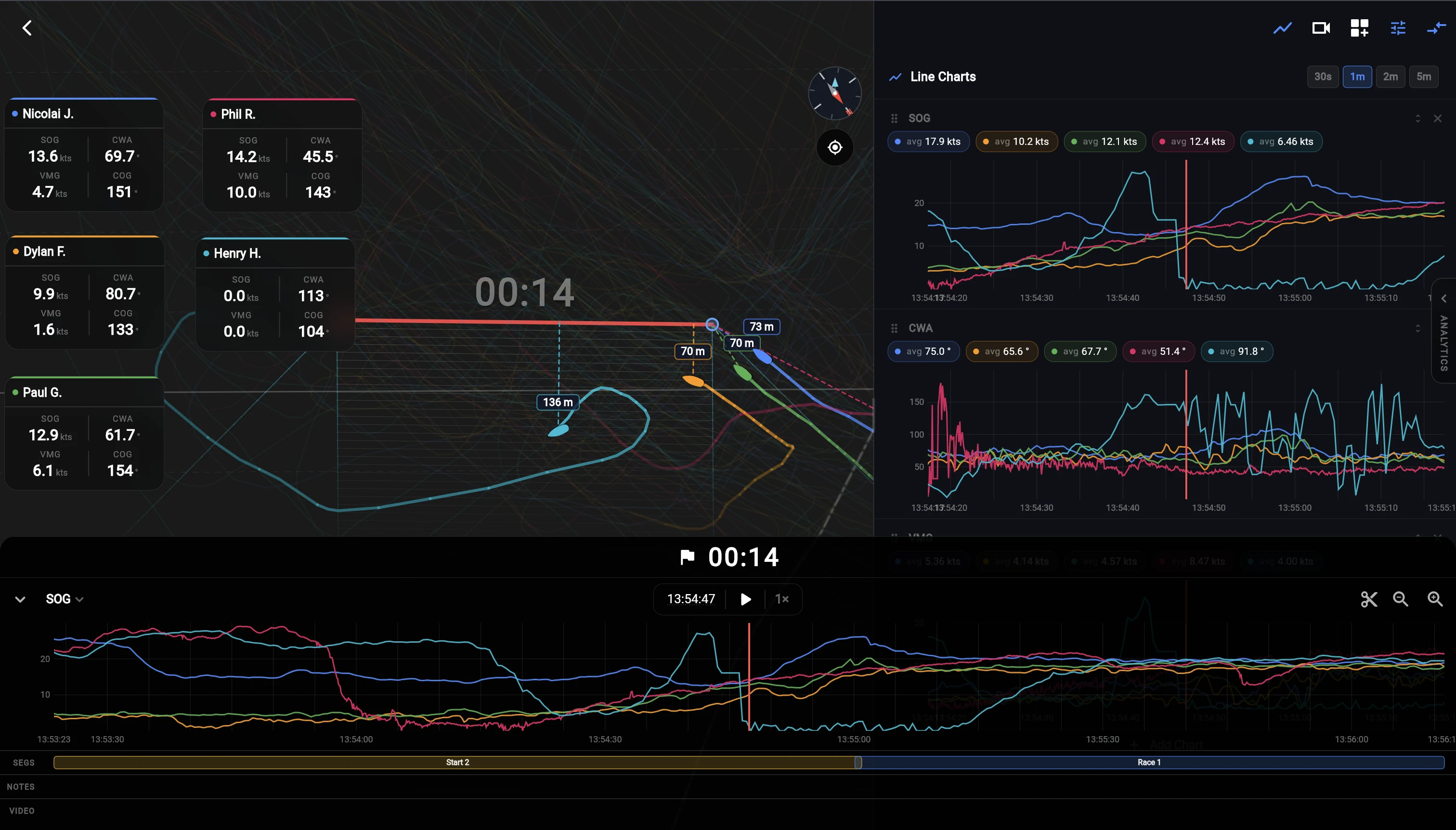
Use Number display metrics for readouts and Map & replay settings for orientation, trails and following. Larger screens offer a review panel; Pro and Coach add Line Charts on supported wide layouts.
Keep an observation
Open Notes at the selected time, choose Add note and save the observation. Select a saved note or its marker to jump back to it.
Focus on an interval
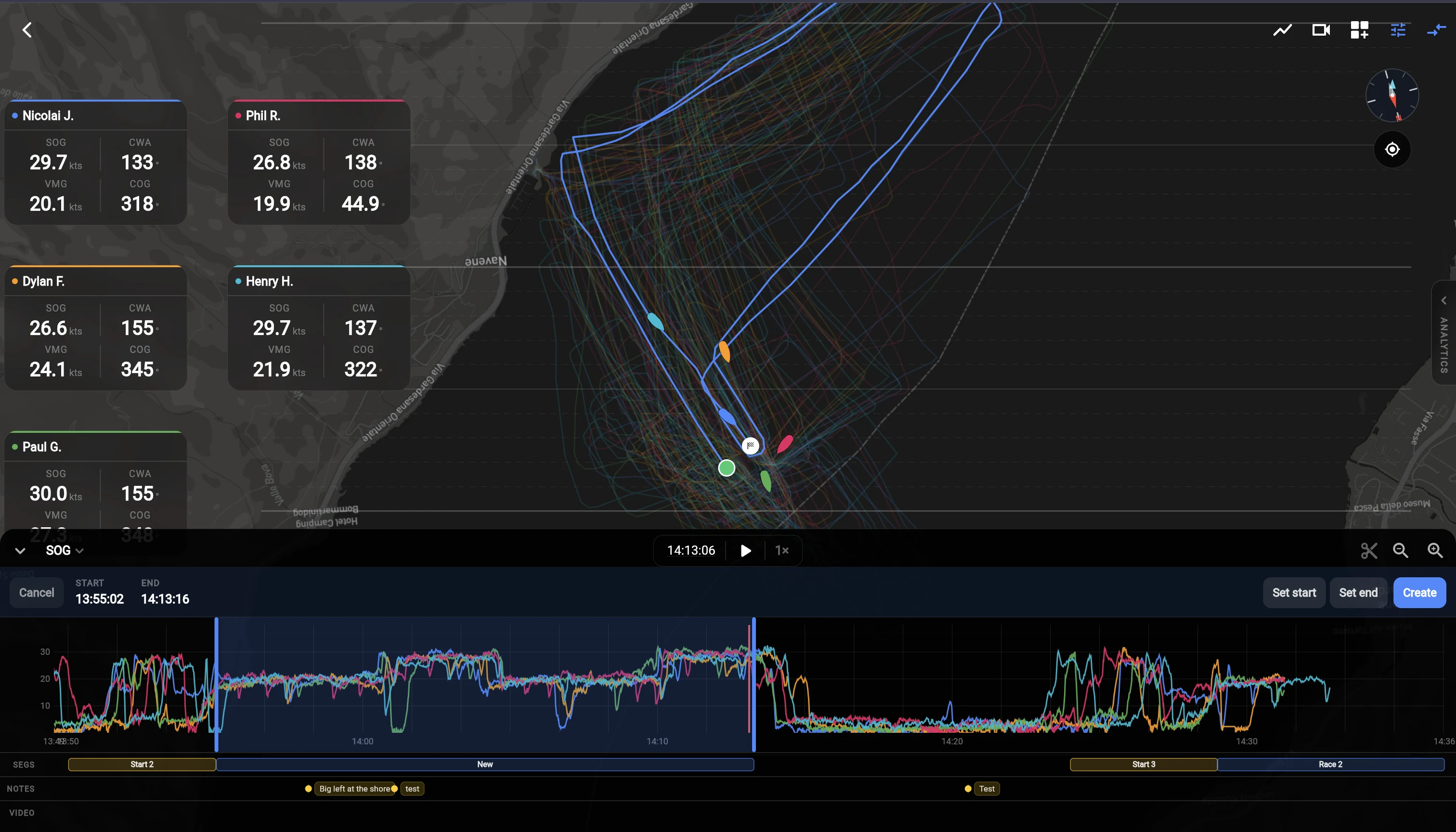
With Pro or Coach, select Create segment (scissors). Move the playhead and choose Set start, then Set end. Choose Create, name the interval and select its type.
Use a saved segment
Select it from Segments in replay or on the activity. The same interval is available in Advanced Analysis instead of Full Activity. Clear the focus to return to the whole session.
Segment actions let you change the name/type or delete it. Create a replacement to change its time boundaries. A segment keeps the rest of the recording.
Recorded starts
If the activity includes start time and line information, select a start in the Starts panel to review the approach and countdown. GPS-based distance and OCS indications are training aids. Naming a segment Start does not supply missing line information.
Keyboard shortcuts
| Key | Action |
|---|---|
| Space | Play / pause |
| Left / Right | Back / forward 10 seconds; hold Shift for 30 seconds |
| Comma / Period | Slower / faster playback |
| G / O | Toggle grid / cycle map orientation |
| F / C | Toggle following / center map |
| + / − | Zoom map |